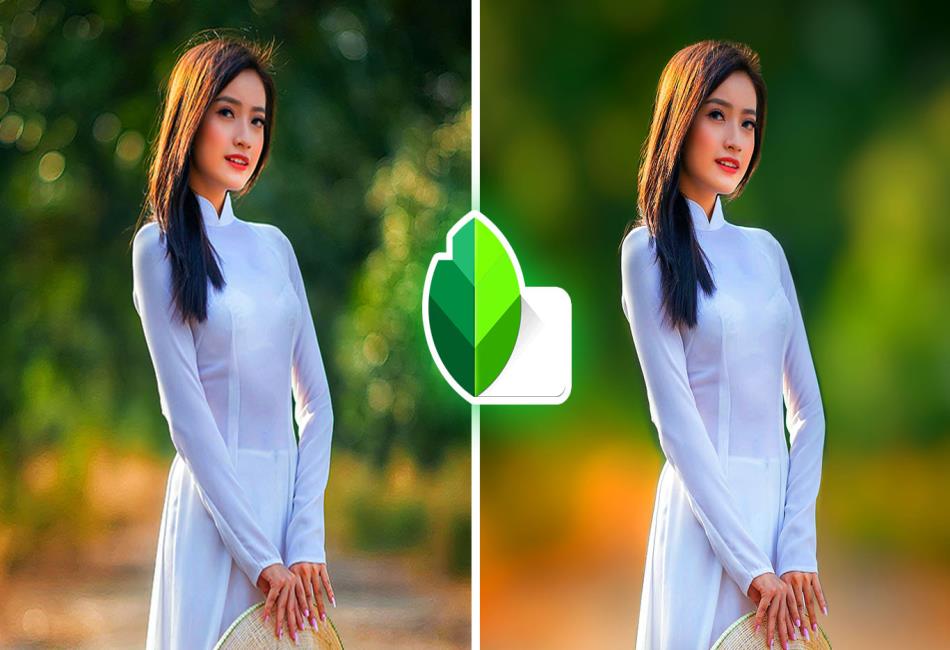
In the ever-evolving world of mobile photography, learning how to blur Snapseed background has become an essential skill for users looking to create professional-looking photos with minimal effort. Whether you want to isolate your subject, hide a distracting element, or simply give your image a more artistic touch, Snapseed makes background blurring simple and effective—even for beginners.
In this comprehensive guide, we’ll walk you through the step-by-step process of creating background blur in Snapseed, explore creative use cases, discuss common mistakes to avoid, and answer frequently asked questions. By the end, you’ll have all the tools you need to make your images stand out on social media, your portfolio, or personal galleries.
What Is Snapseed and Why Use It to Blur Backgrounds?
Snapseed is a powerful photo editing app developed by Google. Available for both Android and iOS, the app offers a wide variety of editing tools that rival desktop software like Adobe Photoshop or Lightroom.
One of Snapseed’s most popular and versatile features is the Lens Blur tool, which allows users to blur specific areas of an image—most commonly the background. Whether you want to replicate a DSLR-like bokeh effect or guide viewer attention to the subject, learning how to blur Snapseed background is a quick and effective way to improve your photos.
Why Blur Backgrounds in Your Photos?
Blurring the background of an image is a popular editing technique used for various reasons:
Focus on the Subject: Emphasize the main subject while minimizing background distractions.
Aesthetic Appeal: Add depth and softness for a more polished and artistic photo.
Hide Imperfections: Mask messy, cluttered, or unattractive backgrounds.
Portrait Enhancement: Create a shallow depth-of-field look that mimics DSLR quality.
These benefits make it clear why so many users want to master the blur Snapseed background technique.
How to Blur Snapseed Background: Step-by-Step Tutorial
Here’s a detailed walkthrough for blurring backgrounds in Snapseed:
Step 1: Open Your Photo in Snapseed
Launch the Snapseed app on your phone.
Tap the “+” icon to open your gallery.
Select the photo you want to edit.
Step 2: Choose the “Lens Blur” Tool
Tap on Tools in the bottom center of the screen.
Scroll down and select Lens Blur.
Your image will now display a circular blur overlay.
Step 3: Position the Blur Area
Use two fingers to zoom in or out to adjust the size of the blur circle.
Drag the circle around with one finger to position it over your subject.
The area outside the circle will be blurred, simulating a shallow depth-of-field.
Step 4: Adjust Blur Strength
You’ll see sliders at the bottom:
Blur Strength: Controls the intensity of the blur.
Transition: Adjusts how smoothly the blur transitions from the focused to unfocused areas.
Vignette Strength: Adds darkness around the edges for dramatic effect.
Slide them to your desired settings and preview the result.
Step 5: Apply the Effect
Once you’re satisfied, tap the checkmark (✓) in the bottom-right corner to apply the blur.
Step 6: Fine-Tune with Selective Editing (Optional)
To enhance your edit, use the Selective tool from the Tools menu.
Tap on specific areas of your photo to adjust brightness, contrast, saturation, or structure.
This helps maintain a natural balance between the blurred background and the subject.
Advanced Tip: Using the “Brush” Tool for Precise Blurring
For those who want more precision when they blur Snapseed background, the Brush tool is a fantastic option:
Open your image in Snapseed.
Select Tools > Brush > Blur.
Adjust the blur intensity (values range from 0 to 100).
Paint the background areas manually using your finger.
Use the eye icon to preview your mask.
Tap the checkmark to apply the blur.
This approach is more time-consuming but offers pixel-level accuracy and is ideal for complex photos.
Common Mistakes to Avoid When Blurring Backgrounds
While trying to blur Snapseed background, beginners often make a few common mistakes. Here’s how to avoid them:
1. Overblurring
Applying too much blur can make the subject look unnatural or poorly edited. Always compare your edit to a real-world DSLR portrait for reference.
2. Misalignment of Blur Area
Make sure the blur doesn’t cut off part of the subject. Misplaced blur zones make the image look sloppy.
3. Ignoring Lighting and Shadows
If your subject and background have drastically different lighting after editing, it might break the realism. Try adjusting brightness and shadows to match.
4. Blurring Faces or Important Details
Double-check that key elements like eyes, faces, or focal objects remain sharp. The goal is to blur Snapseed background, not the subject.
Creative Use Cases for Snapseed Background Blur
Blurring backgrounds isn’t just for portraits. You can use it creatively in a variety of scenarios:
Product Photography: Highlight a product against a clean, soft background.
Travel Photos: Emphasize landmarks or people while reducing distractions.
Food Photography: Draw attention to the dish and soften the table or surroundings.
Pet Photos: Capture sharp images of your furry friends with an artistic blur behind them.
Before-and-After Edits: Use blur to visually separate two versions of an image.
No matter the subject, when used correctly, blur Snapseed background techniques can turn a simple photo into something exceptional.
Comparing Snapseed Blur with Other Apps
Snapseed isn’t the only photo editor that allows background blur, but it stands out for its balance of control and simplicity. Let’s compare:
| App | Blur Tool Available | User-Friendliness | Level of Control | Cost |
|---|---|---|---|---|
| Snapseed | Yes (Lens Blur, Brush) | High | Moderate to High | Free |
| Photoshop Express | Yes | Medium | Medium | Free w/ in-app purchases |
| Lightroom Mobile | Yes (Selective Mask) | Medium | High | Free + Premium |
| PicsArt | Yes (Auto & Manual) | High | Low to Medium | Free + Ads |
| AfterFocus | Yes | Medium | High | Free |
Snapseed remains a top contender because of its intuitive layout, free access, and powerful results.
FAQs About Blur Snapseed Background
Q1: Is Snapseed completely free to use?
Yes, Snapseed is entirely free with no hidden costs or premium tools. You can download it from the Google Play Store or Apple App Store.
Q2: Can I blur only part of the background in Snapseed?
Absolutely. Use the Brush tool for manual control or adjust the size of the Lens Blur tool to focus blur on a specific background section.
Q3: Does Snapseed support automatic background blur?
No, Snapseed does not use AI-based background separation like some apps. All blurring must be done manually using the Lens Blur or Brush tool.
Q4: Is the Snapseed blur effect realistic?
Yes, when done carefully, the blur Snapseed background effect can mimic DSLR-style bokeh. However, it requires attention to detail and careful editing.
Q5: Can I undo or revise my background blur in Snapseed?
Yes, you can go back in the Edit Stack (tap the icon with three layers) and modify or remove any edit, including blur, at any point before exporting.
Q6: Will blurring the background reduce image quality?
Not directly. However, aggressive or uneven blurring can make the image look unnatural. Always preview before finalizing.
Q7: Is Snapseed good for beginner photographers?
Yes. Snapseed is beginner-friendly while also offering enough depth for intermediate and advanced users. The blur features are intuitive and effective.
Q8: Can I blur background in a group photo?
Yes, but it’s more challenging. You’ll need to carefully use the Brush tool or multiple Lens Blur applications to ensure faces and bodies are not affected.
Final Thoughts
Learning how to blur Snapseed background can dramatically elevate your photo-editing game. Whether you’re trying to bring focus to a subject, create an eye-catching aesthetic, or hide distractions, the blur tools in Snapseed give you everything you need—right from your phone.
While it may take a bit of practice to master precise edits, the end results are well worth the effort. Don’t be afraid to experiment, adjust, and refine your approach. With time, you’ll be producing gallery-worthy images that rival even those shot with expensive camera gear.
So, next time you want to highlight your subject or polish a picture before sharing it with the world, open Snapseed and confidently use the blur Snapseed background feature. Your future self (and followers) will thank you.